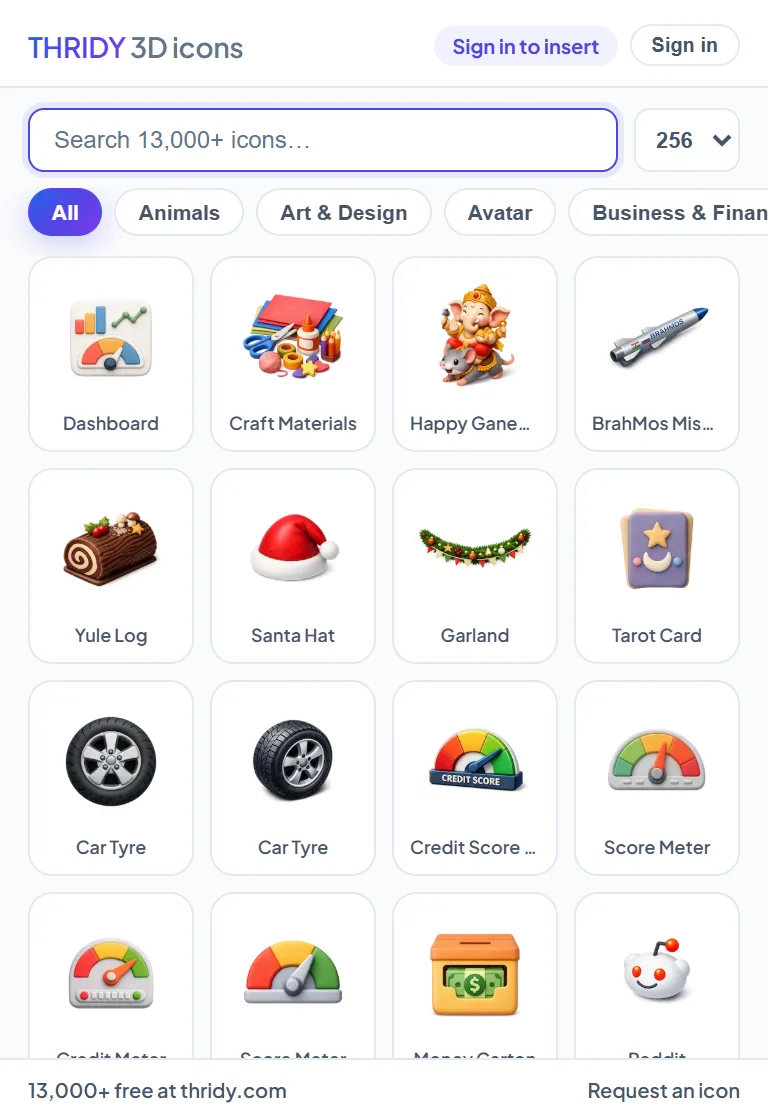
Search the whole Thridy library from inside your file and drop an icon straight onto the canvas at the size you want. No downloads folder, no dragging, no export settings. Free, with a credit to Thridy on the free plan.


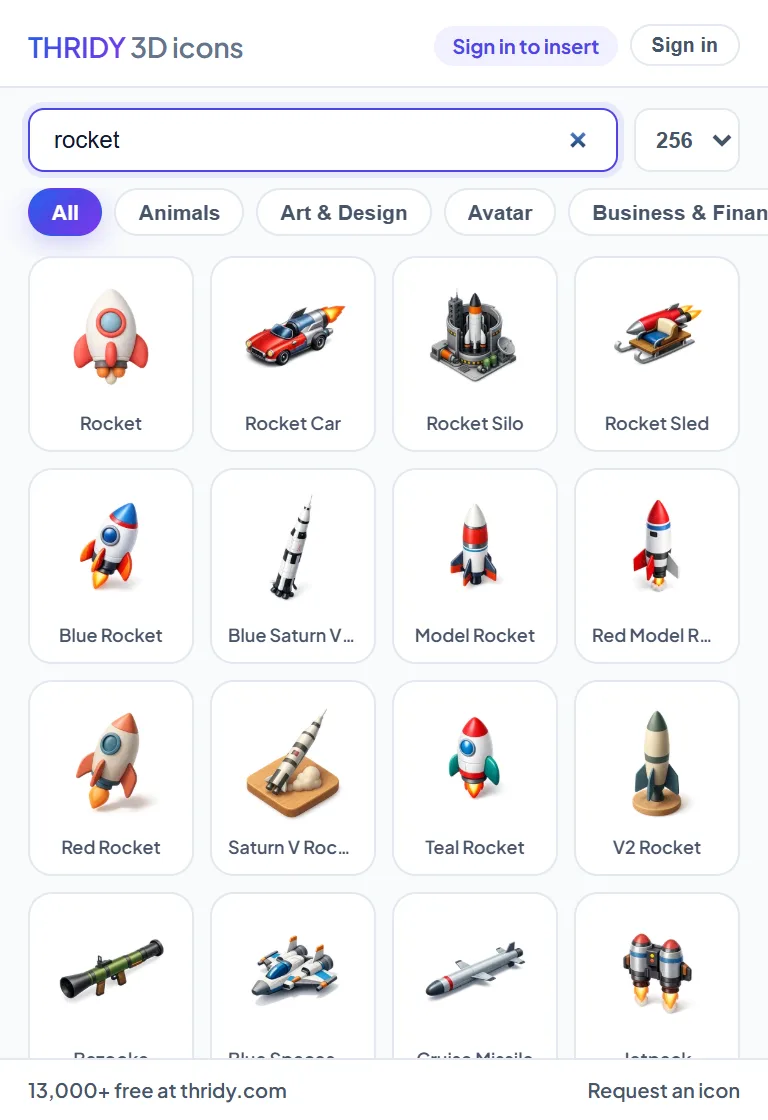
Type a subject, not a filename. Results land as you type, and a misspelling gets the closest match with a note saying so.
A chip rail across the top, filled from the site itself, so a category added on thridy.com shows up in the plugin the same day.
Pick 128, 256 or 512 and click the icon. It lands centred in your viewport, already selected, named after itself.
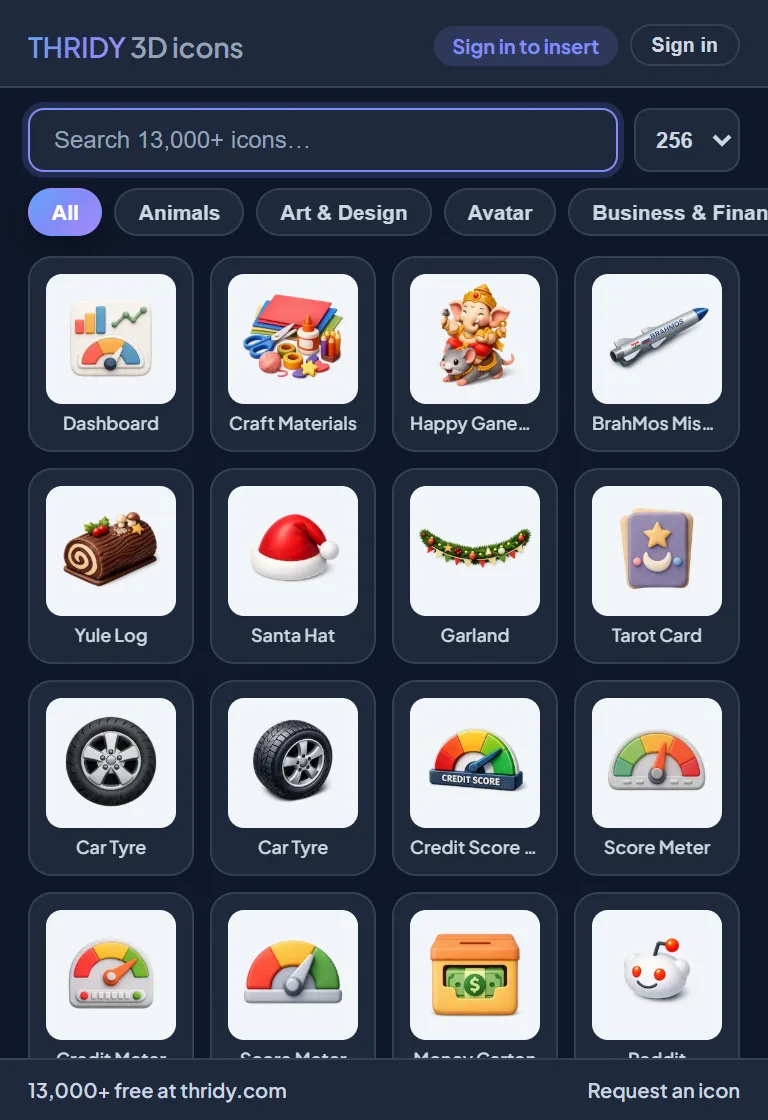
Light or dark, the plugin follows Figma's setting. Icons sit on a pale tile in both, so they read the way they will on the canvas.
How to use it
Install, connect once, search, click. The fifth step is only there so the number in the header makes sense.
Open the Thridy 3D Icons plugin on Figma Community and click Open in Figma. Inside a file you can reach it any time from the Resources menu, or by right-clicking the canvas and choosing Plugins.
Works in Figma design files, web and desktop. You do not need a paid Figma plan.
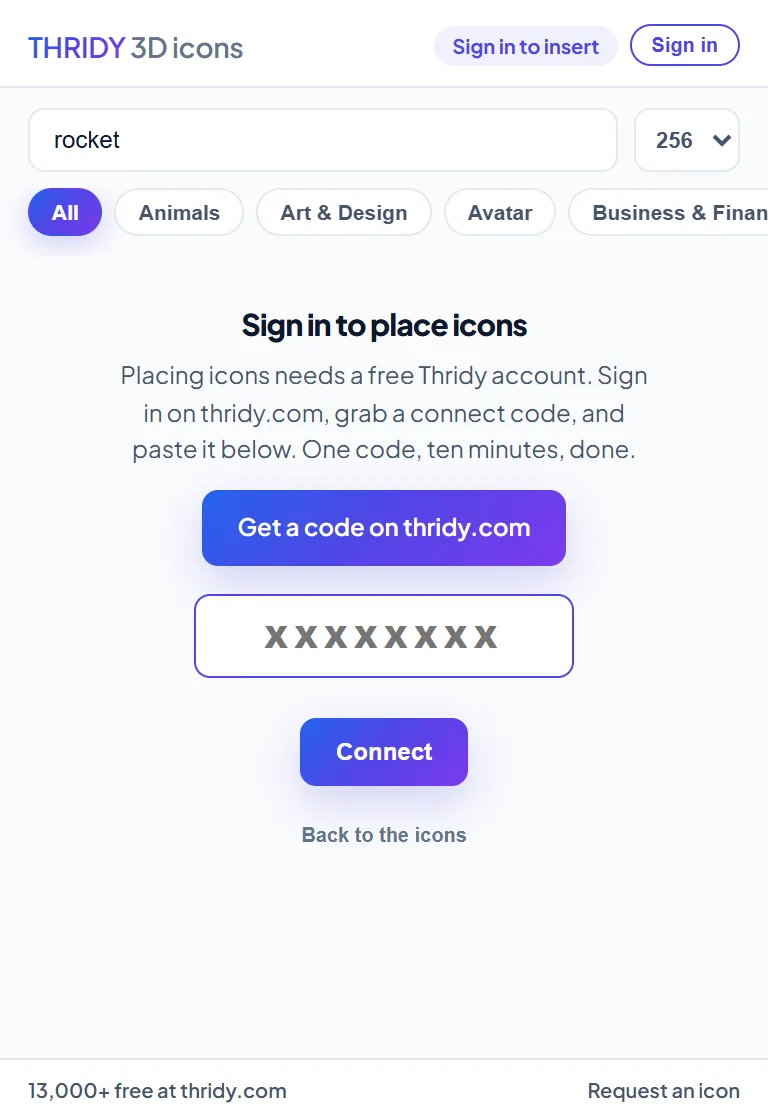
Searching works straight away. Placing an icon needs an account, because each one spends a real download, so the plugin asks you to connect once.
The code works once and lasts 10 minutes. After that the plugin stays signed in until you sign out, so this is a one-time step per machine.
Your Thridy account needs a confirmed email address before it can place icons. If the plugin says so, check your inbox first. You will not need a new code.

Type into the search box: a subject, not a filename. rocket, coffee cup, shopping cart. Results appear as you type. Before you type anything the plugin shows the newest icons, so there is always something on screen.
Tap a category chip to narrow the grid, and the search box narrows within it. Clearing the box keeps the chip you picked.
Searching costs nothing and does not touch your daily allowance.

Pick a size from the dropdown, 128, 256 or 512, then click the icon. It arrives as a square layer with the icon as an image fill, centred in your viewport, already selected, and named after the icon.
From there it is an ordinary Figma layer: resize it, put it in a component, mask it, change its opacity. The art is high resolution, so scaling up stays sharp.
The header shows how many placements you have left today, and turns amber when you are nearly out. It is the same allowance as the website, so an icon placed in Figma and an icon downloaded from thridy.com both count.
Free
Free
5 placements a day
Credit Thridy
Designer
$5.00
50 placements a day
No credit line
Studio
$29.00
100 placements a day
No credit line
The allowance rolls over 24 hours rather than resetting at midnight. Run out and the whole library is still there on the website.
No. The plugin works on the free plan. You do need a free Thridy account, because placing an icon spends a real download. A paid plan raises the daily allowance and drops the credit line; the current numbers are on the pricing page and in the table above.
Because an inserted icon is a real download against your account, counted on our side rather than in the plugin. Searching and browsing inside the plugin need no account and cost nothing.
On thridy.com/connect-figma while signed in. The plugin also has a "Get a code on thridy.com" button that opens it for you. The code is 8 characters, works once, and expires after 10 minutes.
Three usual reasons: it has already been used, more than 10 minutes have passed, or it was made from a different Thridy account than the one you meant. Generate a fresh one and paste it straight in. Codes are not case sensitive.
Ready when you are.
Free to install, free to use. The first icon takes about a minute, and most of that is the code.
Your Thridy account needs a confirmed email address before it can place icons. Check your inbox for the confirmation mail, confirm, then try the icon again. You do not need a new code.
A square rectangle with the icon as an image fill, at the size you picked, centred in your viewport, already selected, and named after the icon. It behaves like any other layer: resize it, mask it, drop it in a component.
128, 256 or 512 pixels square. 256 is the default. The source art is high resolution, so scaling the layer up afterwards stays sharp.
Yes. The plugin follows whatever theme Figma is set to, light or dark, and the icons sit on a pale tile either way so they look the way they will on your canvas.
Yes. Every icon is free for personal and commercial use. On the free plan credit Thridy somewhere in your project; on a paid plan no attribution is required.
The plugin tells you, shows roughly when your next placement unlocks, and points you at the website, where the whole library is still there to download. Your allowance works on a rolling 24 hours, not a midnight reset.
In Google Search
Add to Preferred Sources