Grayscale
Convert an image to black and white.
Drop your image here
Nothing is uploaded. Everything runs on your device.
Before and after
See what changes
 ColourBlack and white
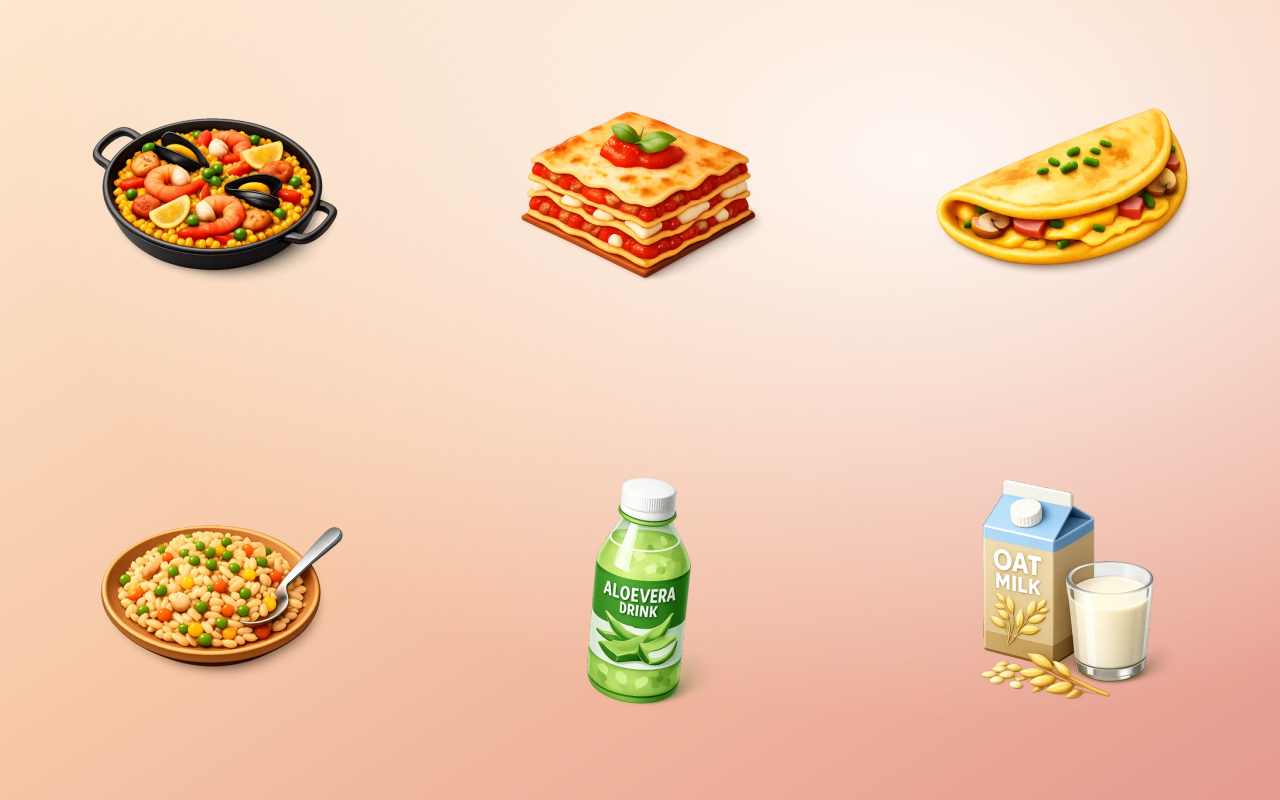
Drag the handle across the image. The right-hand side is this tool's output, not a mock-up of it.
- Before
- Colour
- After
- Black and white
Three steps
How to use the grayscale
- 01
Add your image
Drop in any colour photo or graphic.
- 02
Convert to black and white
Apply it fully in one click, or dial back the amount for a partly desaturated look.
- 03
Download
The result is a proper luminance-weighted monochrome, not a flat channel average.
Why this one
What makes it different
Weighted for how eyes work
Green contributes far more to perceived brightness than blue, so a weighted conversion keeps tonal separation that a naive average flattens.
Partial amounts, not just on or off
A partly desaturated image is a distinct and useful look, and it needs a dial rather than a switch.
Unifies a mixed set
A grid of photos taken in different light stops fighting each other the moment colour is removed.
How this tool handles your files
- Where it runs
- Your browser, not a server
- Uploads
- None, ever
- Account
- Not required
- Watermark
- Never added
The short version
About grayscale
Removing colour is a design decision rather than a correction, and its most practical use is consistency: a set of photographs shot in different light and different seasons stops looking like a set the moment colour is involved, and starts looking like one the moment it is not. Doing it with proper luminance weighting is what keeps the result from going muddy.
Questions
Grayscale FAQ
How is this different from setting saturation to zero?
A proper grayscale conversion weights the red, green and blue channels by how much each contributes to perceived brightness. Averaging them equally makes reds too light and greens too dark.
Does black and white reduce file size?
Somewhat, since there is less colour information to store, though the saving is smaller than most people expect because brightness detail dominates the file.
Can I get the colour back afterwards?
No. The conversion discards the colour data. Keep the original file if there is any chance you will want it.
When is black and white the right choice?
When colour is inconsistent across a set, when it distracts from form and texture, or when the image needs to sit quietly behind something else, like text.





Free, and staying free
The tools are free because the icons are the business.
Thridy is a library of thousands of 3D icons in one consistent style, free for commercial use with a credit to Thridy, and no account needed. The tools exist so you never have to upload an image to somebody else's server to resize it.
Keep going
More image tools

Blur Image
Apply a smooth Gaussian blur by any amount.

Pixelate Image
Pixelate an image or hide part of it in blocks.

Sharpen Image
Bring out edges and detail with a sharpen pass.

Brightness
Brighten or darken an image.

Contrast
Increase or soften the contrast of an image.

Saturation
Make colours richer or more muted.