
Add Border
Frame an image with a solid border in any colour.
Drop your image here
Nothing is uploaded. Everything runs on your device.
Before and after
See what changes
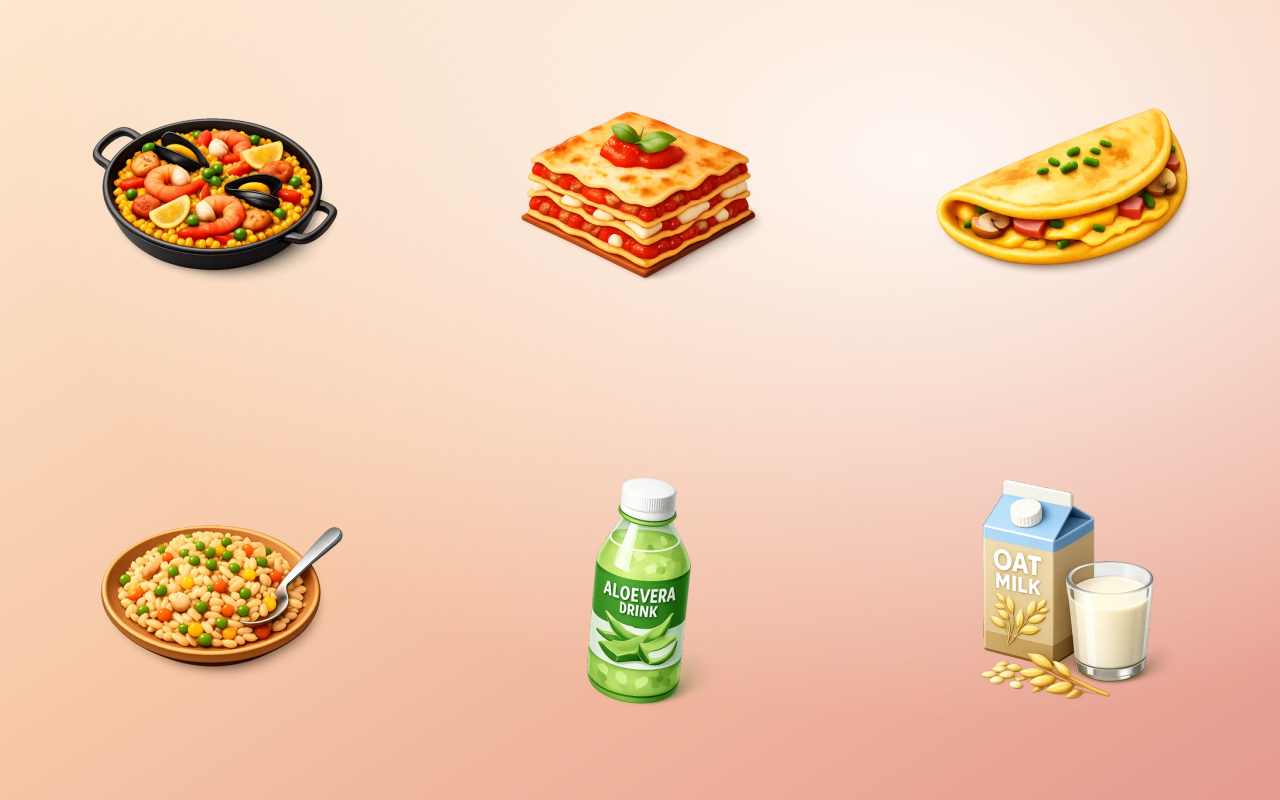 No borderBordered
Drag the handle across the image. The right-hand side is this tool's output, not a mock-up of it.
- Before
- No border
- After
- Bordered
Three steps
How to use the add border
- 01
Drop in an image
Add the photo or graphic that needs framing.
- 02
Pick thickness and colour
Set how thick the frame should be and choose any colour, including white for a print-style mat.
- 03
Download the framed image
The canvas grows outward, so the original image is never covered by its own border.
Why this one
What makes it different
The border is added, not painted over
The canvas expands to hold the frame instead of drawing it on top, so nothing at the edge of your image is hidden.
Any colour, not a fixed set
Match a brand colour exactly rather than picking from six presets that are all slightly wrong.
Consistent across a set
The same thickness applied to several images gives a set that looks deliberate, which is most of what makes a feed look designed.
How this tool handles your files
- Where it runs
- Your browser, not a server
- Uploads
- None, ever
- Account
- Not required
- Watermark
- Never added
The short version
About add border
A border does two jobs that look like one. It stops a light image dissolving into a light background, which is a legibility problem, and it makes a group of unrelated photographs look like a considered set, which is a design problem. Both are solved by the same two numbers, a thickness and a colour, applied consistently.
Questions
Add Border FAQ
Why add a border to an image?
A frame separates the image from whatever is behind it. On a white page a white-ish photo bleeds into the background, and a thin border is what stops it. It also makes a grid of mixed photos read as one set.
How thick should the border be?
For a web image, between one and two percent of the width usually reads as intentional. Much thinner disappears on small screens, much thicker starts competing with the image.
Does the border change the image dimensions?
Yes. The canvas grows by the border thickness on each side, so a 1000px image with a 20px border becomes 1040px. Resize afterwards if you need an exact final size.
Can I add a transparent border for spacing?
Export as PNG or WebP and use a fully transparent colour. That gives you padding around the image without a visible frame, which is useful for icon sets.





Free, and staying free
The tools are free because the icons are the business.
Thridy is a library of thousands of 3D icons in one consistent style, free for commercial use with a credit to Thridy, and no account needed. The tools exist so you never have to upload an image to somebody else's server to resize it.
Keep going
More image tools

Image Resizer
Resize to exact dimensions or a preset for any platform.

Image Cropper
Crop freehand or lock to a ratio like 1:1 and 16:9.

Circle Crop
Cut an image into a perfect circle with transparent corners.

Rotate Image
Turn an image by 90 degrees or any custom angle.

Flip Image
Mirror an image horizontally or vertically.

Rounded Corners
Soften an image with rounded corners.