Flip Image
Mirror an image horizontally or vertically.
Drop your image here
Nothing is uploaded. Everything runs on your device.
Before and after
See what changes
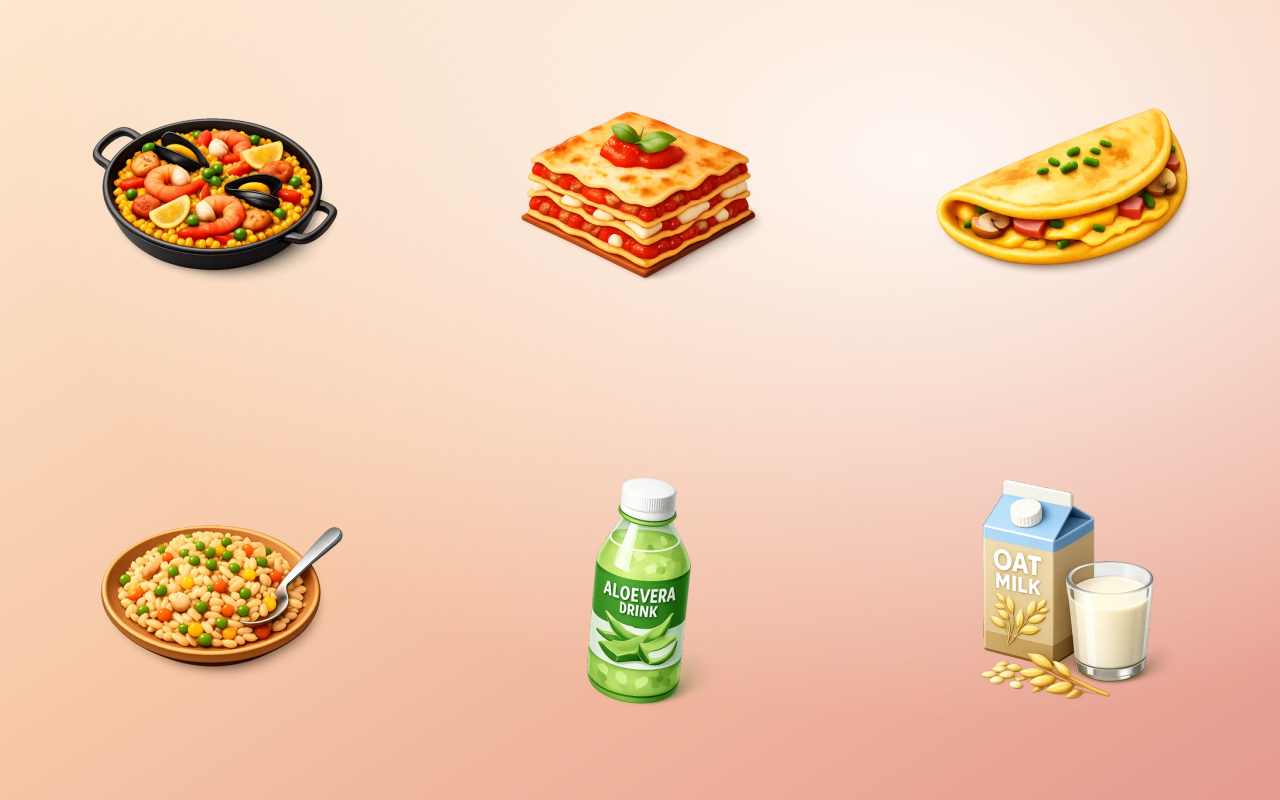 OriginalMirrored
Drag the handle across the image. The right-hand side is this tool's output, not a mock-up of it.
- Before
- Original
- After
- Mirrored
Three steps
How to use the flip image
- 01
Add your image
Drop in the photo or graphic you want mirrored.
- 02
Flip an axis
Mirror it left to right, top to bottom, or both.
- 03
Download
The result is the same file, the same size, with the pixels mirrored.
Why this one
What makes it different
Completely lossless
Flipping only reorders existing pixels, so the output is pixel-for-pixel the original with nothing recompressed or approximated.
Fixes the selfie problem
Front cameras show you a mirror and then save the unmirrored version, which is why selfies look wrong. One horizontal flip puts it back to what you saw.
Both axes, independently
Horizontal, vertical or both, so you can build a symmetric pattern from one tile without opening an editor.
How this tool handles your files
- Where it runs
- Your browser, not a server
- Uploads
- None, ever
- Account
- Not required
- Watermark
- Never added
The short version
About flip image
Flipping is trivial and constantly needed, which is a good reason for it to be one click rather than four menus deep. The single most common use is undoing the front camera mirror, closely followed by making a symmetric pattern from one tile, and both are the kind of thing that should not require installing anything.
Questions
Flip Image FAQ
What is the difference between flipping and rotating?
Flipping mirrors the image, so text reads backwards. Rotating turns it, so text stays the right way round but on its side. They are not interchangeable.
Why do my selfies look wrong when I share them?
The camera preview mirrors you, because that is what you expect from a mirror, but the saved file is unmirrored. Flipping horizontally gives you back the version you were looking at while you took it.
Does flipping affect quality?
No. It is one of the few image operations that is genuinely lossless, since it moves pixels without changing any of their values.
Can I flip only part of an image?
Not here. Crop the part you want first, flip it, then combine it back with the collage tool if you need the two halves together.





Free, and staying free
The tools are free because the icons are the business.
Thridy is a library of thousands of 3D icons in one consistent style, free for commercial use with a credit to Thridy, and no account needed. The tools exist so you never have to upload an image to somebody else's server to resize it.
Keep going
More image tools

Image Resizer
Resize to exact dimensions or a preset for any platform.

Image Cropper
Crop freehand or lock to a ratio like 1:1 and 16:9.

Circle Crop
Cut an image into a perfect circle with transparent corners.

Rotate Image
Turn an image by 90 degrees or any custom angle.

Add Border
Frame an image with a solid border in any colour.

Rounded Corners
Soften an image with rounded corners.